Resources - FAQs
Your one-stop destination for everything you need to kickstart your journey with LightWare’s microLiDAR®.
Frequently asked questions
Learn how to download and use LightWare Studio in the video below.
Learn how to upgrade the firmware on your LightWare sensor in the video below:
LightWare’s products use lasers that emit light with a wavelength of 905 nm. This wavelength has been chosen to provide a good balance between reliability and eye safety. Shorter wavelengths are more hazardous and lasers with longer wavelengths are less reliable.
All LightWare products use the “direct time-of-flight” principle to measure distance. This works by timing how long it takes for a flash of laser light to travel to the surface being measured and back again. The distance is calculated using the equation:
distance-to-surface = speed-of-light x time-of-flight / 2
What makes the beam spread analysis difficult is that there is an “actual” beam spread and an “effective” beam spread.
The “actual” beam spread is an optical phenomena caused by the geometry of the lenses. This is a diverging cone that increases linearly in size as the distance increases.
The “effective” beam divergence is a measure of what the detector sees when a target is in the beam. At close distances the “effective” and “actual” beam divergence are similar. As soon as the edge of the target enters the beam it is detected making the apparent position of the edge of the beam match with the theoretical position.
As the distance increases the signal gets weaker so more of the target needs to be directly in the beam before the return signal can be detected. In other words the apparent edge of the beam no longer matches with the theoretical edge. This makes the beam appear to be smaller than the “actual” beam diameter and the “effective” beam divergence reduces as the distance increases.
As an example, a field-test with an LW20/C provided the following results:
- at 10 m distance – beam spread of approx. 4.5 cm
- at 45 m distance – beam spread of 19.0 cm
- at 91 m distance – beam spread of 20.3 cm
The PLD (Pulsed Laser Diode) and APD (Avalanche Photo Diode) LightWare uses in their Laser Rangefinders have a lifespan of 100 000 hours.
The other electronic components have a much longer lifespan.
Caution: Electronics may degrade if subjected to high temperatures. We recommended keeping the products well within the specified operating temperatures.
The mean time between failure (MTBF) of mechanical components inside scanning devices are as follows:
– motors: approximately 6 000 hours
– slip rings: approximately 2 000 hours
In case of failure or maintenance please contact LightWare for our RMA procedure.
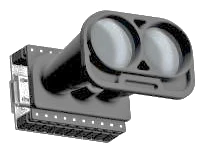
The SF 22 is a great tool for hobbyists who want to get their hands on a long range LiDAR at low cost. This unit has 100 m range and is able to connect via Serial UART or I2C. This amazing little unit has a resolution of 1 cm, thus it also has high precision. In this article we will connect to the SF 22 using a Serial UART connection.
In this application guide:
- We will look at the difference between first and last return signals
- How knowing this information will allow you to set up the device more optimally
- All libraries used in this document can be found in the Quickstart & API reference guide
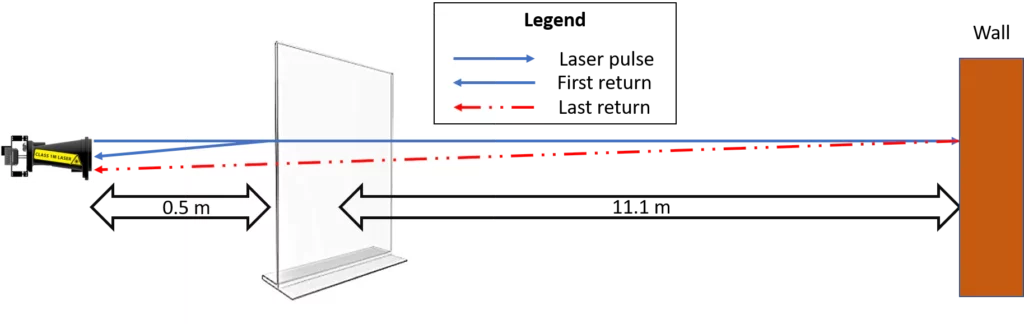
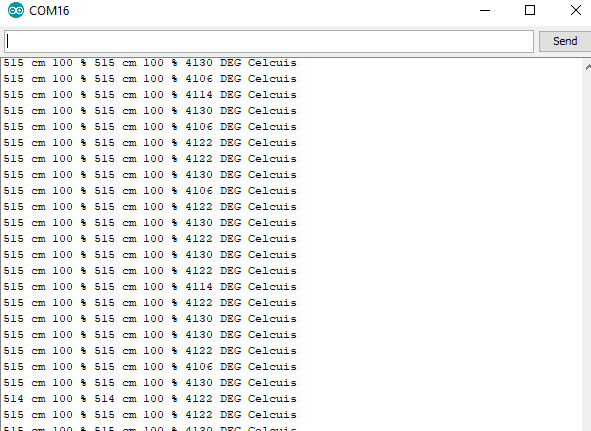
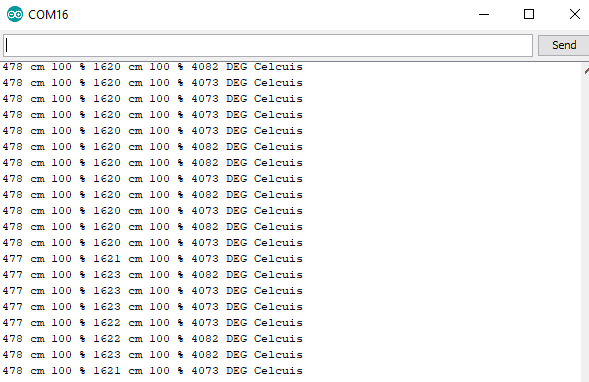
When a LiDAR unit measures range, generally it is a solid surface that the return signal is received from. But what happens to light that passes through a surface that light is able to pass through such as glass or perspex? The result is you get two signals back. This is not apparent at close range, this is due to the wavelength of the laser. Depending on the wavelength of the sensor you are using, there will be a range where the first and last return data will appear to be the same. This is because the “length” of the light pulse is of a certain distance and at a short distance the two return signals are seen as one continuous return by the APD sensor. Both instances will be shown below, the first image shows what happens at close range. The second image shows what happens at long range.
Short Distance Return Signal
Definition
- First return – simply put is the light signal that the SF 22 receives as the first strong light signal back from the single pulse.
- Second return – is the second light signal that the SF 22 receives as the second strong signal back from a single pulse.
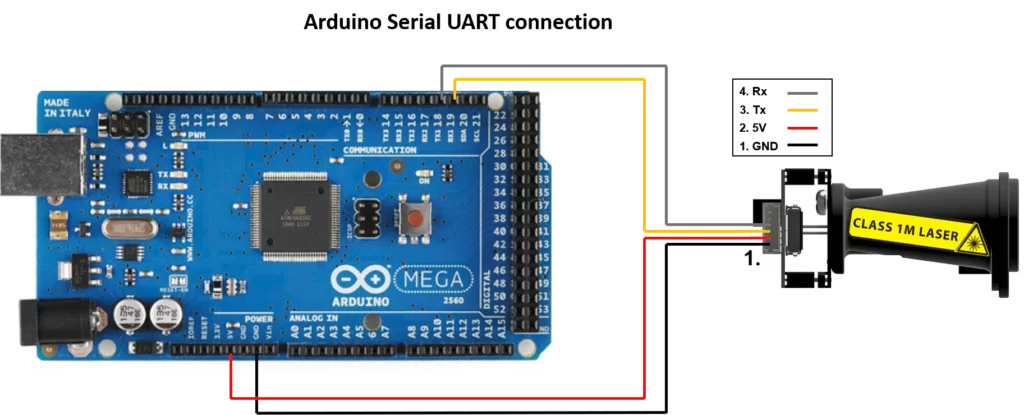
Connecting the Arduino for Serial UART communication:
SF 22 Serial UART connection to Arduino
Arduino Code
The code given below is available in the quick start guide (Quickstart & API reference guide), a slight addition to the code needs to be made to access the second return information.
The following lines of code were added to the code:
(sf22.lastRaw_cm,DEC) … ( access the last return distance in centimeters.)
(sf22.lastStrength_cm,DEC) …( access the last return signal strength in centimeters.)
________________________________________________________________________________________________________________________________________________
Code:
// www.Lightware.co.za Oct 2019
// Lightware example code using the lw_sf22.h library
// This library enables the use of the I2C and Serial Interface
// This library is designed to use 2 Serial ports on the Arduino
#include <lw_sf22.h>
#include <Wire.h>
LW_SF22 sf22(Serial1, Serial);
void setup() {
//this is the serial port for the terminal window
Serial.begin(115200);
// Setup the Serial port for the SF22 interface
Serial1.begin(115200);
// Disable any possible streaming data
sf22.writeDataStreamType(0);
delay(100);
// Read the data sent from the SF22
sf22.ProcessSerialInput(1);
delay(100);
// Request the SF22 Hardware Name
sf22.readRequestHardwareName();
delay(100);
// Read the data sent from the SF22
sf22.ProcessSerialInput(1);
delay(100);
// Request the SF22 Firmware Version
sf22.readRequestFirmwareVersion();
delay(100);
// Read the data sent from the SF22
sf22.ProcessSerialInput(1);
delay(100);
// Request the streaming output distance data selection
sf22.readRequestDistOutConfig();
delay(100);
// Read the data sent from the SF22
sf22.ProcessSerialInput(1);
delay(100);
// Set the streaming to distance in cm
sf22.writeDataStreamType(13);
delay(100);
// Read the data sent from the SF22
sf22.ProcessSerialInput(1);
}
void loop() {
uint8_t new_data = 0;
// Every cycle check the Serial receive buffer for data and then process it
new_data = sf22.ProcessSerialInput(0);
// if new data was received, then display the following first and last distance
if (new_data == 1){
Serial.print(sf22.firstRaw_cm,DEC);
Serial.print(” cm “);
Serial.print(sf22.firstStrength_cm,DEC);
Serial.print(” % “);
Serial.print(sf22.lastRaw_cm,DEC);
Serial.print(” cm “);
Serial.print(sf22.lastStrength_cm,DEC);
Serial.print(” % “);
Serial.print(sf22.APDTemperature,DEC);
Serial.println(” DEG Celcuis “);
new_data = 0;
}
// put your main code here, to run repeatedly:
}
________________________________________________________________________________________________________________________________________________
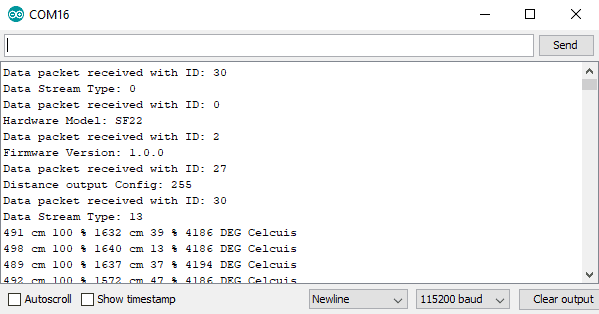
Results :
The results are printed in the following sequence
- First Return
- First Signal Strength
- Last Return
- Last Signal Signal Strength
- APD temperature.
Initial Startup:

Close Distance:
Long Distance:
From the two results it can be seen that the second return is at a further distance away and that the unit is actually able to detect both the transparent material and the wall behind, provided that the wall behind is not too close. So depending on the application in which the SF 22 is used, it is advantageous to know this or have an idea of this property to maximise the potential of this LiDAR.
IP (Ingress Protection) is an international standard used to rate the degree of protection in electrical enclosures against solids and liquids. The first digit after the IP indicates the level of protection against solids like dust. The second digit indicates protection against liquids like water. View the IP ratings guide here.
LightWare microLiDAR® sensors are available in two categories – SF range and LW range. Our LW range of sensors are entirely encased for full IP protection (IP65 or IP67).
The backend of the SF range has no IP protection but the lens assembly is IP rated. For the best protection against water and dust, install the SF device so that only the lenses are exposed. Then ensure that a good seal surrounds the housing. View our mounting guidelines here.
For specific IP ratings of our products, refer to the respective device manual.
SF11 & SF30 product range
The lens assembly of these products are IP67, but the back-end containing the PCBA and connectors have no protection.
For the best protection install these devices in such a way that only the lenses are exposed and ensure a good seal around the housing.
SF20 & GRF-product range
This product is an OEM module with an exposed PCBA and is designed to be integrated into an airframe or enclosure.
The lens assembly is IP67 and should be installed in such a way that only the lenses are exposed. Ensure a good seal around the lenses for optimal protection.
SF40 product range The SF40/C does not have protection at this time. LW20 product range The LW20 is fully encased and carries an IP67 rating.
Please visit our YouTube channel for application videos: https://www.youtube.com/c/LightWareLiDAR/videos
1. Poor
Connecting unshielded wires may make the SF20 susceptible to electromagnetic interference from nearby radio transmitters or other sources of noise. This will result in a slight loss of performance and in extreme cases the SF20 may be unable to take measurements. Small high frequency emissions from the SF20 may also be detected by sensitive radio or satellite receivers.
2. Better
Connecting the shield wire to the screw on the SF20 and earthing the other end to either ground or a quiet negative rail will improve the performance of the SF20 when near to a radio transmitter. Additionally, any RF transmission from the SF20 will be reduced.
3. Best
For the very best performance the LW20 provides a shield around the electronics that connects to the shield on the wire harness. By earthing this shield the LW20 is highly resistant to RF transmissions and will produce negligible interference.
What is Servo Lag?
Using a device such as a servo for scanning applications results in a phenomena known as “servo lag”.
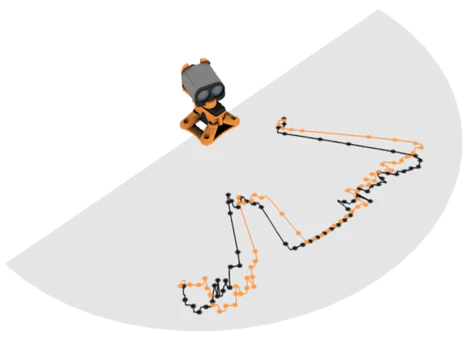
This is noticeable when using a range finder scanning from left to right and then from right to left at a constant speed. The data received will appear to be mismatched when compared side by side. One of the main reasons why you would see this is that you have the mechanical drawback of servos, as you experience the effect of “servo lag”, that most servos experience when moving at a constant speed. Servo lag happens because servos are designed to move to a fixed location and stop. This is what they were optimised for, thus when the servo moves continuously, the control loop isn’t able to catch up with the aiming direction and always lags behind:
The orange and black lines indicate the difference in data received when scanning from left to right (black) and right to left (orange) due to the servo lag. Using the Terminal software, a servo lag factor can be applied either by following the FAQ on getting started with my LightWare LiDAR.
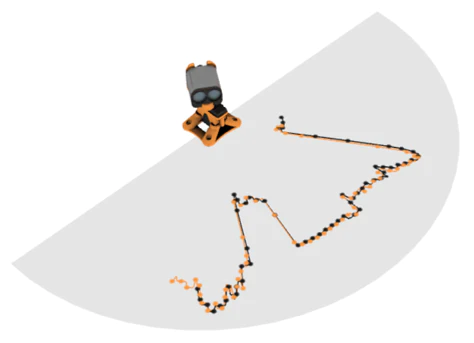
Using the Terminal software navigate to the menu option that allows you to enter a value for the servo lag, note that the mechanical motion of the servo will remain consistent. Depending on the servo you are using you will have to use a specific servo lag factor. If unsure, start adjusting this value incrementally (starting at a low value) until you notice that the values scanning from side to side overlap as indicated below:
From time to time these settings should be checked in case of wear on the gears or changes to the power supply.
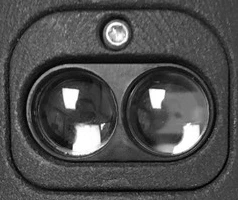
If the LightWare microLiDAR® lenses have collected dust, use a clean, soft cloth or air compressor to remove it.
The lenses are coated with an anti-reflective, non-scratch coating. Only appropriate lens cleaning materials should be used to avoid scratching the sensor’s lens or damaging the coating.
DO NOT USE ANY PETROCHEMICAL BASED CLEANERS.
Keep the device free from moisture in accordance with its IP rating.
The table below shows a glossary of common terms used when configuring your LightWare microLiDAR® laser rangefinder
Parameter | Description | |
|---|---|---|
First Return | The strongest or closest valid signal detected in a single laser pulse cycle. This is the primary measurement in most cases. | |
Last Return | The farthest valid signal detected from a single pulse. Useful in environments with multiple targets (e.g., foliage or partially transparent materials). | |
Raw Distance | The unprocessed measured distance, directly from the time-of-flight calculation. | |
Filtered Distance | The distance after applying internal signal filtering (e.g., median, smoothing, or outlier rejection) to remove noise or spikes. | |
Signal Strength | The ratio of laser output pulses that generate a valid return signal. It reflects how well the target surface is returning the laser beam — higher values mean stronger, more reliable returns. | |
Background Noise | Represents ambient light or signal interference detected by the sensor, useful for diagnosing noisy or reflective environments. | |
Yaw Angle | The current scan angle (in hundredths of a degree), showing the beam’s horizontal position within the scanning range. | |
Temperature | Internal temperature of the LiDAR, in hundredths of a degree Celsius. | |
Below is a table that compares all of our products and compatibility with different Autopilot stacks:
Product | ArduPilot | PX4 |
|---|---|---|
GRF250 & GRF500 | Serial & I2C | Serial & I2C |
LW20/C & SF20/C | Serial & I2C | I2C only |
SF000/B | Serial & I2C | I2C only |
SF45/B | Serial | Serial |
SF11/C | Serial & I2C | Serial & I2C |
SF30/C | Not compatible | Serial |
SF30/D | Serial & I2C | I2C only |
SF40/C | Serial | Not compatible |
LightWare has tested compatibility and interoperability between several permutations of ArduPilot firmware, LightWare hardware revisions and LightWare firmware versions.
The comprehensive list is available to download HERE.
The table below is a summary of the last version of ArduPilot- and LightWare firmware tested.
LightWare LiDAR | Last firmware tested | Last ArduPilot version tested |
|---|---|---|
SF20/C | 4.4.3 | 4.6.2 |
LW20/C | 4.4.3 | 4.6.2 |
SF000/B | 1.3.1 | 4.6.2 |
SF30/D | 1.15.0 | 4.6.2 |
SF45/B | 1.1.2 | 4.6.2 |
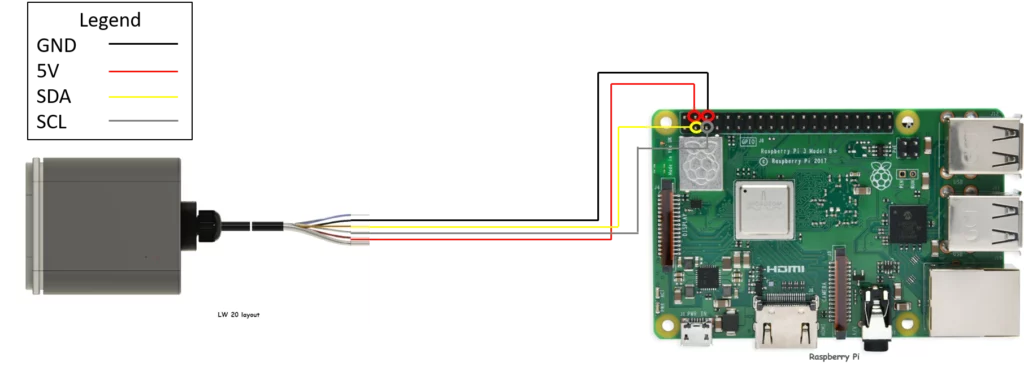
Connecting our Rangefinders to external devices such as Arduino, Raspberry Pi and Pixhawk to name a few, is not a difficult task. It just takes a few easy steps and you will be able to be up and running with out devices.
This example uses the following components and tools:
- Raspberry Pi 3 Model B+
- LW20/C
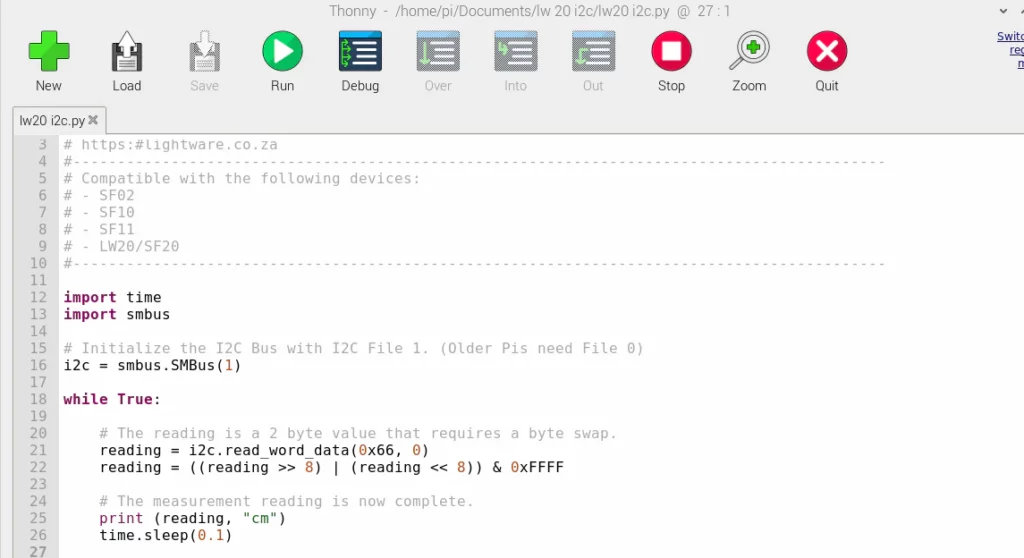
- Thonny Python
Useful tips before starting with the code:
- Ensure that you have Python V 3.0 on your Raspberry Pi
- Download the Python code using the following link: Python Code
- Configure I2C communication, a quick guide on how to do this is available using the following link: Raspberry Pi
- When using the LW20, Please use the hex address, 0x66. The rest of the code can remain the same.
The SF000/B LiDAR has an on-board servo motor driver. This and its small size make it ideal for creating a linear scanner.
This example uses the following components:
-SF000/B LiDAR
-SF000/B Communication cable
-SF000/B Breakout board
-SF000/B USB connector
-SF000/B LightWare mounting bracket
– Servo motor (FeeTech FT2331M or Micro Robotics LF-20MG are used here)
-USB Serial communicator
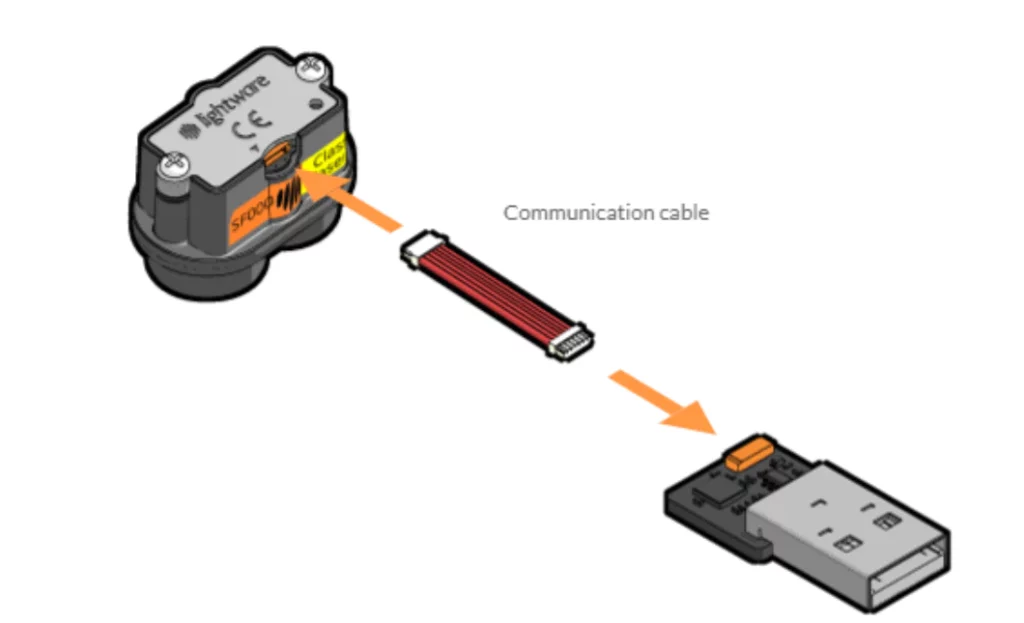
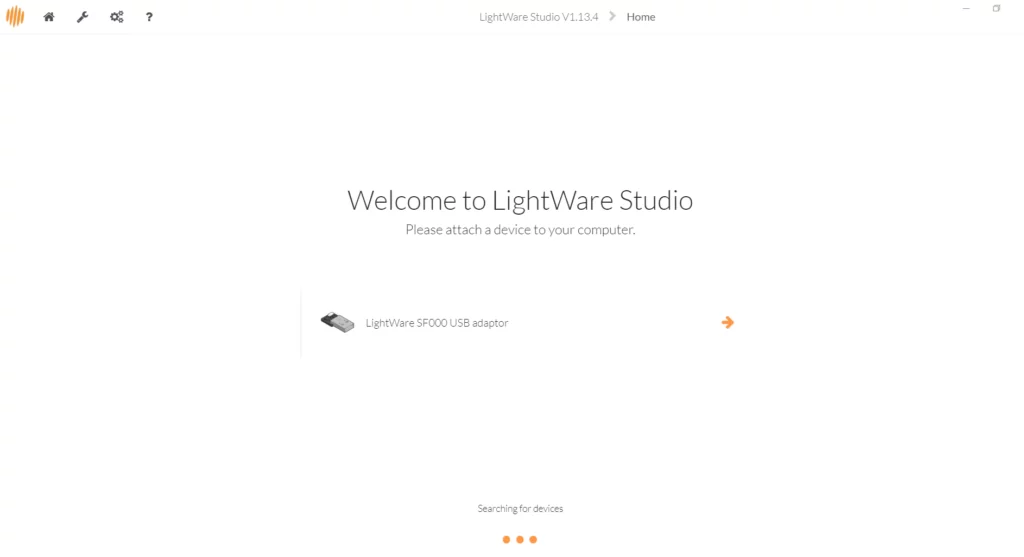
Connect the SF000/B via the communication cable and USB connector to a computer.
Select the tool icon on the top left and open the generic serial terminal.
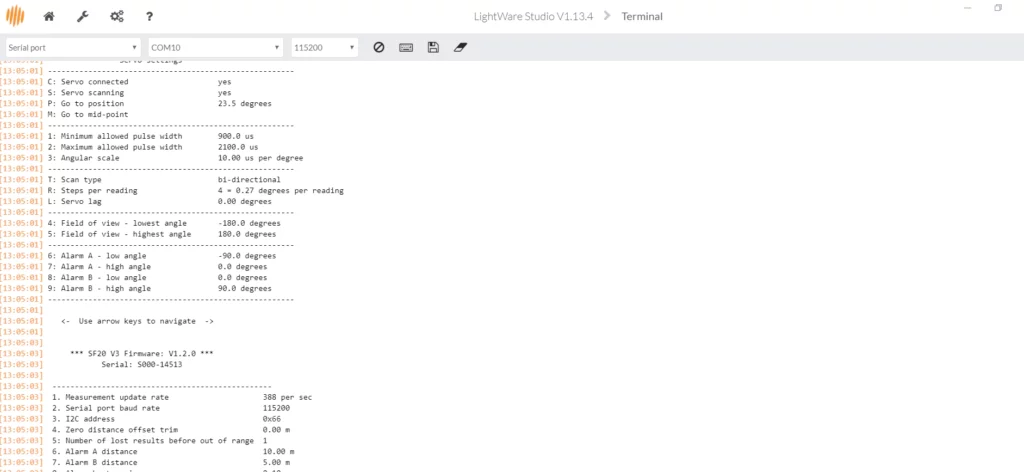
Select the 115200 Baud rate and appropriate com port and connect.
Press the up arrow three times to cycle through the interface, then the right arrow key once to navigate to the scanning interface.
Set the scanning parameters to your desired servo by pressing the appropriate button indicated next to the setting. Settings above are for the FeeTech FT2331M.
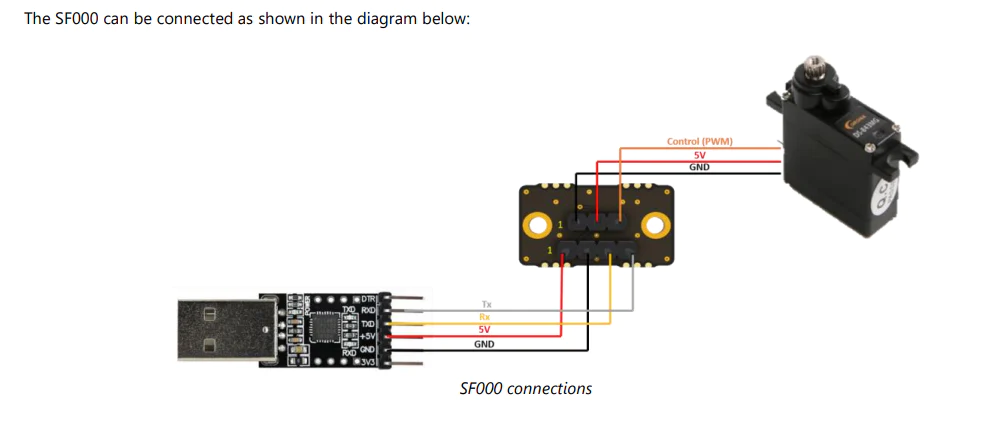
Now disconnect the SF000/B from the USB adaptor and connect it to Section D of the breakout board.
Connect the servo motor to the 3 pin with pin 1 as ground.
(The “1” on the board indicates pin 1)
Connect the USB serial communicator.
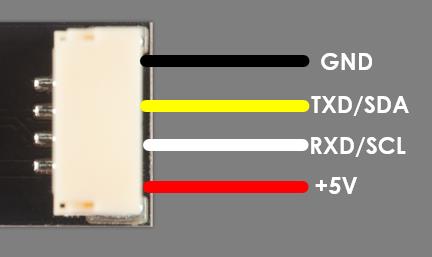
Communication Rail Pin Description: 1 Power (Vin), 5V 2, Ground (GND), 3 Rx, 4 Tx
Reading altitude off a water surface is quite challenging, especially during bright sunshine. The laser signal can be lost within the water and sunshine reflecting off the water surface causes noise and false readings.
LightWare suggests changing the rangefinder’s settings before flying over water. These parameters can be set through LightWare Studio or using code.
SF30/D
Update rate should be set to the lowest update rate, LightWare suggests 39 readings/s.
The SF30/D can be set to first return or last return, customers are advised to run some tests before choosing the return mode that suits their application. For most applications, first return is sufficient.
Depending on your application, the Lost signal threshold should be set to 20 or higher, this is the number of lost readings received before an out-of-range signal is reported. This should be sufficient for altitudes below 50m. This will need to be increased or decreased depending on the height and type of water surface you are flying over.
The median filter and size on the SF30/D can only be set via code.
Enable the median filter on the sensor, the median filter returns the most frequent result in a number of readings and is recommended for use over water due to the sunshine reflecting from the water surface as well as the lost signal conditions. A median filter of 20 readings is a good starting point and can be adjusted according to your application.
A median filter when set to 20 readings will output the most frequent reading, which should discard false readings and temporary loss of signal. The maximum filter size is 32 readings.
SF20/C or LW20/C
Update rate should be set to the lowest update rate, LightWare suggests 48 readings/s.
Depending on your application, the Lost signal threshold should be set to 20 or higher, this is the number of lost readings received before an out-of-range signal is reported. This should be sufficient for altitudes below 50m. This will need to be increased or decreased depending on the height and type of water surface you are flying over.
Enable the median filter on the sensor, the median filter returns the most frequent result in a number of readings and is recommended for use over water due to the sunshine reflecting from the water surface as well as the lost signal conditions. A median filter of 20 readings is a good starting point and can be adjusted according to your application.
A median filter when set to 20 readings will output the most frequent reading, which should discard false readings and temporary loss of signal. The maximum filter size is 32 readings.
These settings can be used as a guideline for other LightWare sensors in over water applications.
The LightWare Pixhawk adaptor is designed for seamless and effortless integration between a LightWare sensor and a Pixhawk controller. Simply use the cable bundled with your Pixhawk controller to connect the Pixhawk adaptor to the controller.
For more information on how to connect your LightWare sensor to a Pixhawk controller, refer to our video explaining that in detail.
When connecting a sensor to the LightWare Pixhawk adapter to a different cable, it is important to observe the appropriate pinout for the cable connections. The diagram below shows the pinout of the LightWare Pixhawk adaptor.
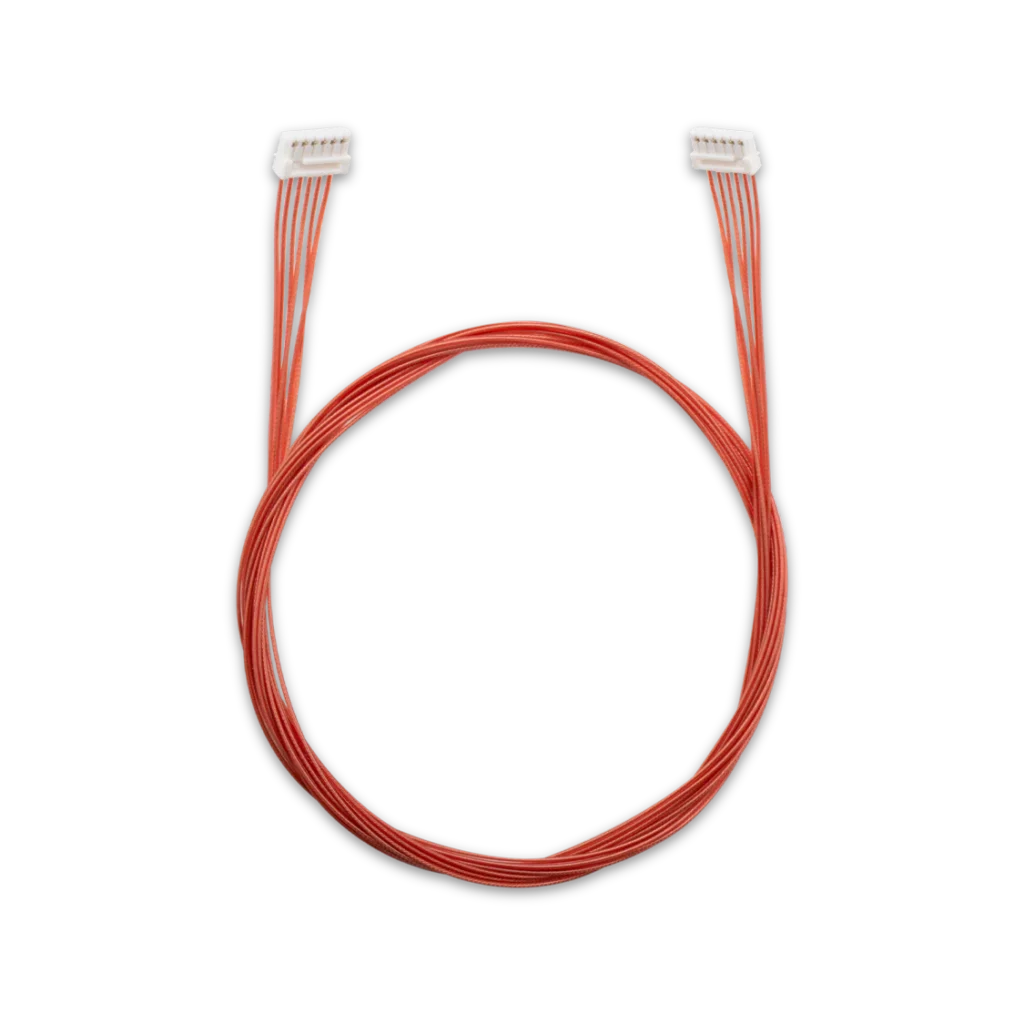
The SF000/B is shipped with a HPN-3795-1 included in the box.
Should this cable get damaged, LightWare and some of our distributors stock this cable as a spare part that you can purchase.
Click HERE to buy the cable from LightWare’s Accessories list.
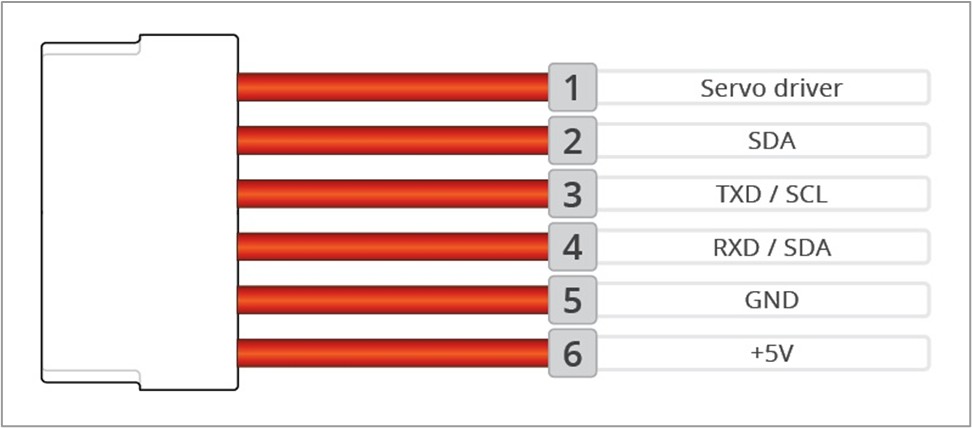
The pinout for the cable is indicated below
Pin | Serial function | I2C function |
|---|---|---|
1 | Servo driver — Servo 1 control output (3.3 V) | Servo driver — Servo 1 control output (3.3 V) |
2 | Not used | SDA — I2C serial data line (used with pin 4) |
3 | TXD — serial data transmitted | SCL — I2C serial clock line |
4 | RXD — serial data received | SDA — I2C serial data line (used with pin 2) |
5 | GND — power supply negative | Not used |
6 | +5 V power supply positive (4.5 V to 5.5 V, 100 mA typical) | +5 V power supply positive (4.5 V to 5.5 V, 100 mA typical) |
This cable features a JST 06XSR-36S connector. To integrate this sensor seamlessly onto your platform, you can use the mating reciprocal SM06B-XSRS-ETB, which is the surface mount connector that allows you to connect the cable directly onto your custom PCB.
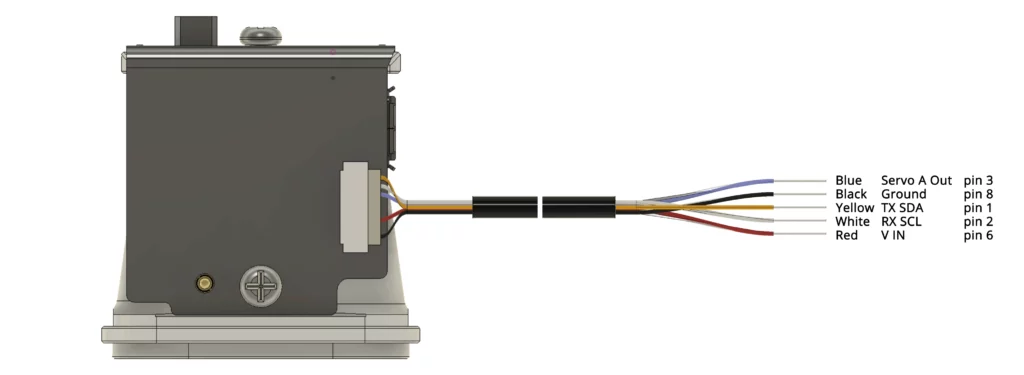
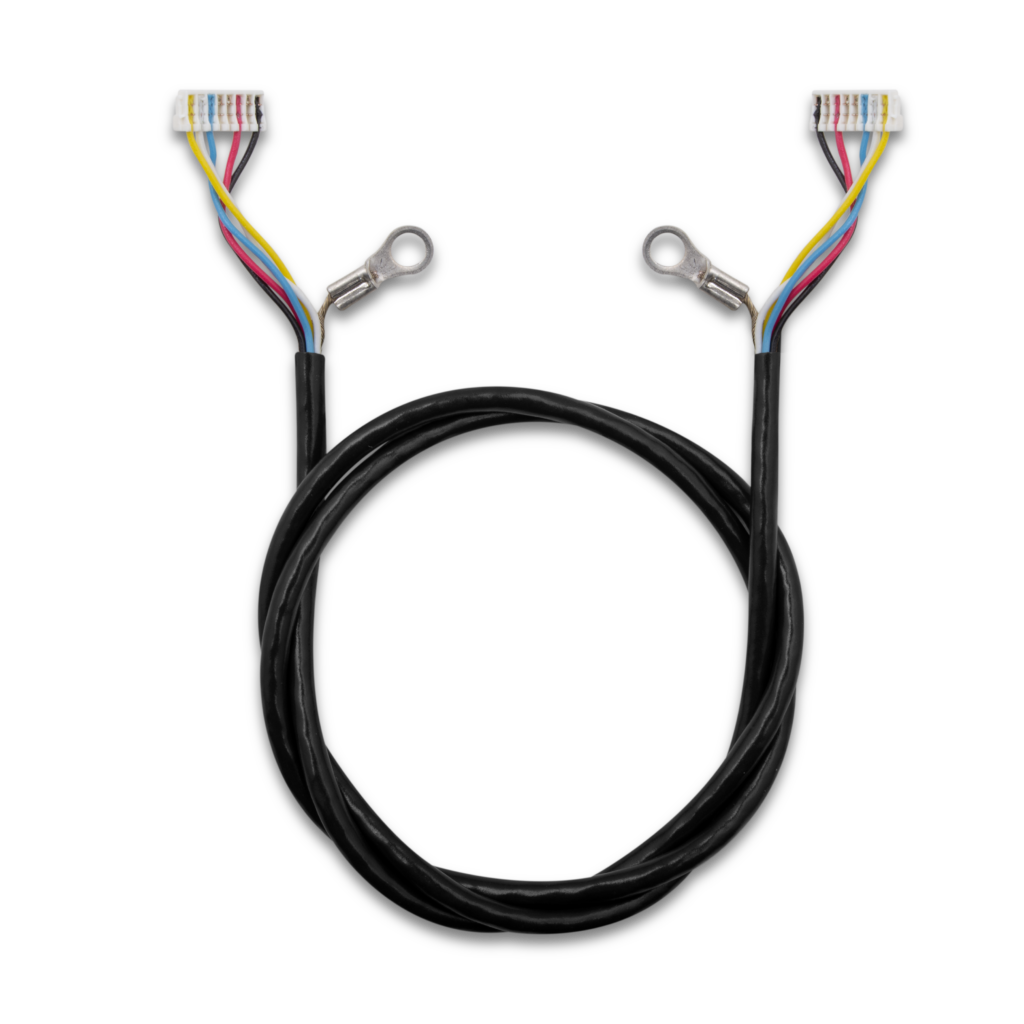
The LW20/C and SF20/C is shipped with a LA 000_184 cable, the LW20/C’s is preconnected.
Should the cable on the SF20/C get damaged, LightWare and some of our distributors stock this cable as a spare part that you can purchase. Click HERE to buy the cable from LightWare’s Accessories list.
If the cable on the LW20/C get damaged, please contact LightWare support at [email protected] for assistance.
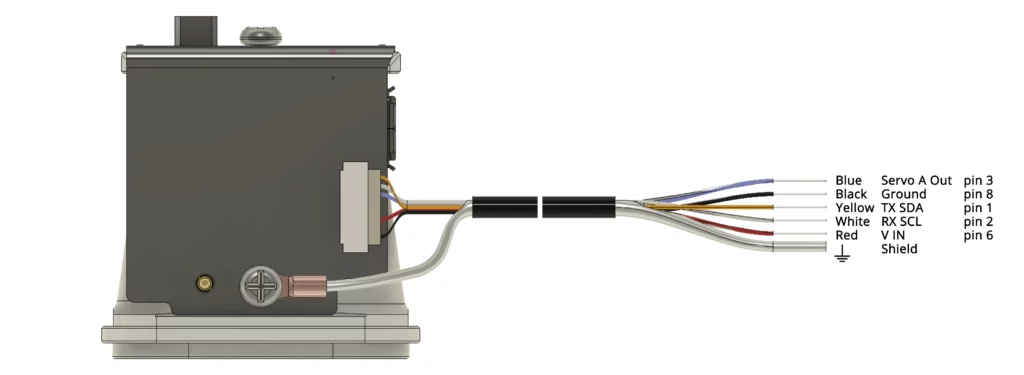
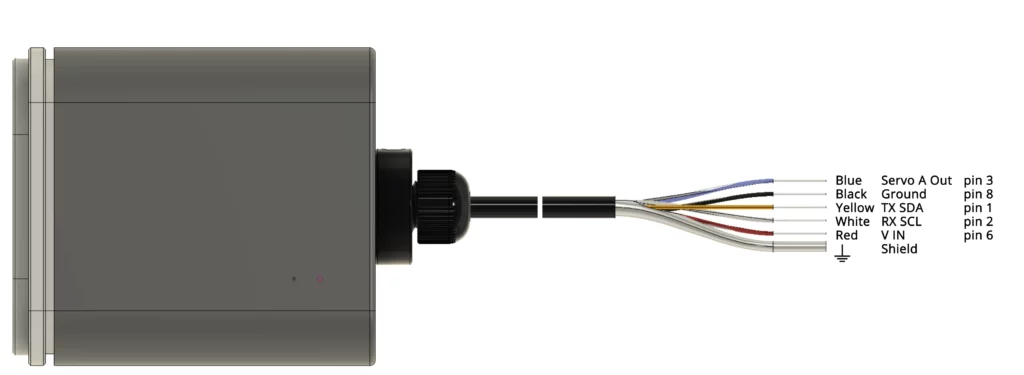
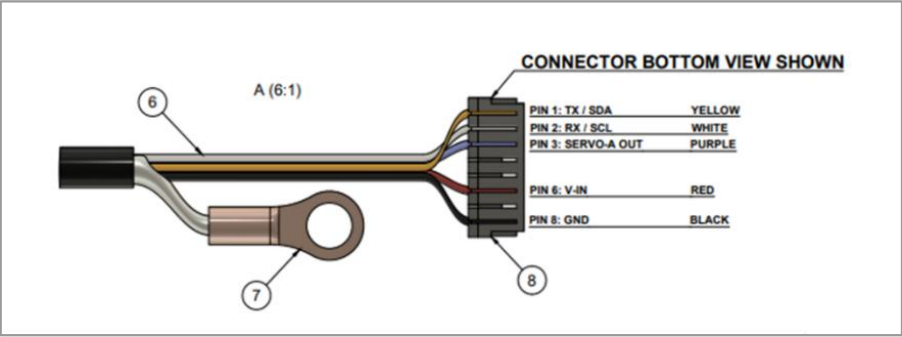
The pinout for the cable is indicated below
Pin | Wire | Serial function | I2C function |
|---|---|---|---|
1 | Yellow | TXD, transmit data for serial connections | SDA, serial data for I2C connections |
2 | White | RXD, receive data for serial connections | SCL, serial clock for I2C |
3 | Blue | Servo control line, PWM, GPIO | Servo control line, PWM, GPIO |
4 | [pin not used] | [pin not used] | |
5 | [pin not used] | [pin not used] | |
6 | Red | +5 V power supply positive (4.5 V to 5.5 V) | +5 V power supply positive (4.5 V to 5.5 V) |
7 | [pin not used] | [pin not used] | |
8 | Black | GND, power supply negative, power or logic | GND, power supply negative, power or logic |
Shield | Earth to reduce EMI | Earth to reduce EMI |
This cable features a JST 08SUR-32S connector. To integrate this sensor seamlessly onto your platform, you can use the mating reciprocal SM08B-SURS-TF, which is the surface mount connector that allows you to connect the cable directly onto your custom PCB.
The section below briefly describes a few options:
Method 1: Use a mounting bracket These products can be mounted using a purchased 725-28055 aluminium stand kit.
Method 2: directly onto the housing
Some customers glue Velcro onto the aluminium enclosure of the unit, and fix it to their airframe. Use zip ties to secure.
Mounting orientation:
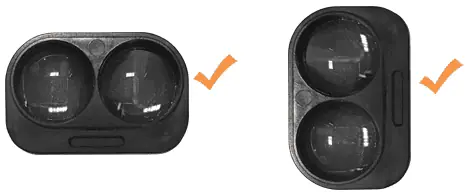
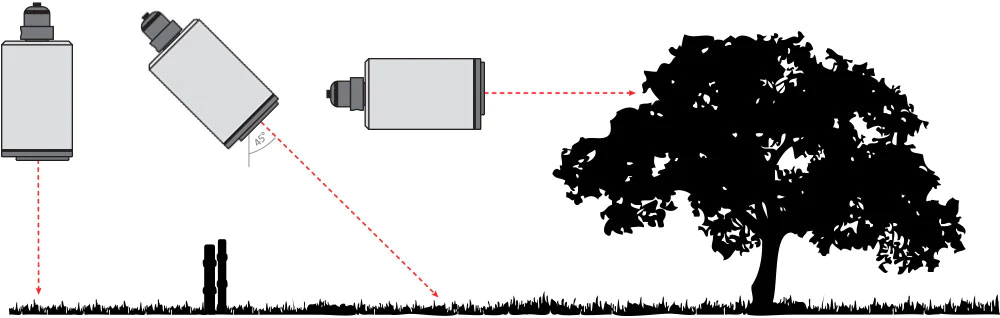
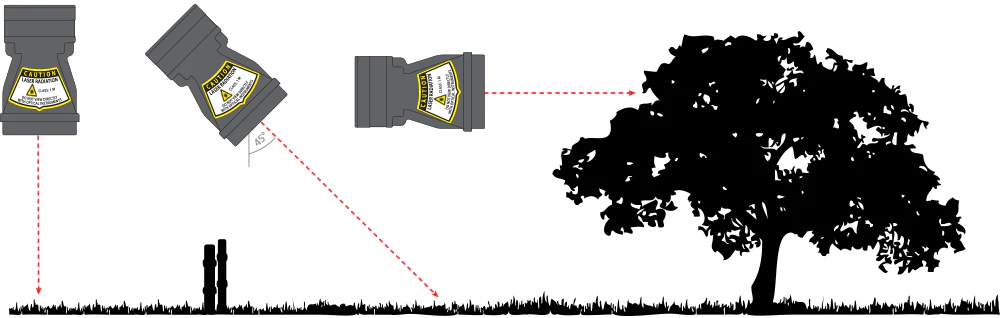
Rangefinders can be mounted with a vertical or horizontal lens orientation.
They can be mounted in a downward facing orientation for altimetery / terrain following / precision landing applications. For terrain following, angle the rangefinder to reduce lag time in reaction. The angle depends on the speed traveled and the overall system lag, but should be between 20 and 45 degrees.
They can be mounted forward facing orientation for sense and avoid / position hold applications.
Precautions
Do not mount the rangefinder within the cavity of the airframe, rather mount it directly at the surface boundary. This can prevent beam divergence from causing false readings in short range distances, or out of range conditions.
Ensure that nothing is in the path of the laser beam.
Ensure that no shiny or highly reflective surfaces are near the path of the beam.
Secure the cable with zip ties to protect it from pulling on the connnectors.
Method 1: Mount directly onto the housing
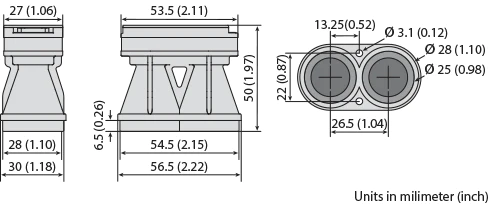
The LightWare SF11/C or SF30-series rangefinder housings has two 3.1 mm diameter holes (22 mm separation), which can be used for mounting directly onto an airframe or into an enclosure. The lens section has a ridge for landing and sealing purposes.
Some customers glue Velcro onto the lid section on the back of the unit, and fix it to their airframe. Use zip ties to secure.
Method 2: Using a mounting bracket
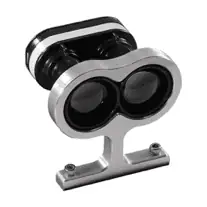
These products can be mounted using a purchased 725-28920 aluminium stand kit.
Mount using a 3D printed mounting bracket from our library.
Mounting orientation
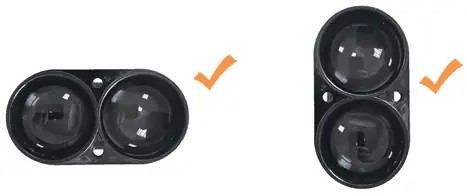
Rangefinders can be mounted with a vertical or horizontal lens orientation.
They can be mounted in a downward facing orientation for altimetery / terrain following / precision landing applications. For terrain following, angle the rangefinder to reduce lag time in reaction. The angle depends on the speed traveled and the overall system lag, but should be between 20 and 45 degrees.
They can be mounted forward facing orientation for sense and avoid / position hold applications.
Precautions
Do not mount the rangefinder within the cavity of the airframe, rather mount it directly at the surface boundary. This can prevent beam divergence from causing false readings in short range distances, or out of range conditions.
Ensure that nothing is in the path of the laser beam.
Ensure that no shiny or highly reflective surfaces are near the path of the beam.
Secure the cable with zip ties to protect it from pulling on the connnectors.
All LightWare’s packaging and deliveries are handled with the utmost care, prioritizing product safety and customer satisfaction.
Order Fulfilment
- Orders may be fulfilled from either our Colorado warehouse or from our factory warehouse in South Africa, depending on stock availability.
- For USA delivery addresses, Incoterms* will be DDP (Delivered Duty Paid), meaning LightWare will cover all costs associated with transportation, insurance, duties, and taxes.
- For all other delivery addresses, DAP (Delivered at Place) Incoterms will apply. Under DAP, the customer acts as the recipient and importer of the goods, taking responsibility for any import fees or taxes imposed by the destination country.
- All exports are declared at their commercial value in compliance with international laws. LightWare cannot accommodate requests for lower declared values to reduce customs duties.
Shipping and Courier Services
- All shipments are handled by LightWare’s contracted courier, UPS (United Parcel Service), unless an alternate courier is agreed upon by the customer.
- Prices and delivery options are displayed on our website using our special UPS rates. Customers must register to view and calculate applicable rates.
- Deliveries will be made to the delivery address specified at the time of ordering unless otherwise agreed upon in writing.
Shipping Terms and Restrictions
- Ex Works (EXW) or shipping via a customer’s courier service is only available for shipments from the Colorado warehouse.
- Collections or shipments via customer courier accounts cannot be accommodated for orders from the South African factory warehouse. This ensures compliance with South African tax law, which mandates a 15% VAT charge on such transactions.
Dispatch and Delivery Times
- Orders for in-stock items are typically dispatched the next business day after payment is received.
- Delivery times via courier are approximately 3-5 business days, but may vary due to factors beyond our control, such as:
- Weather conditions
- Logistical delays
- Incorrect delivery information
- Customs processing
- Public holidays
- Upon dispatch, customers will receive an email with tracking details to monitor the shipment’s progress. For specific delivery dates and times, please refer directly to the courier’s website.
- Delivery dates provided on our website are estimates and subject to third-party courier schedules. LightWare LiDAR Inc. cannot be held liable for delays caused by external factors. Should a delay occur, please notify us promptly, and we will assist in resolving the issue.
- In the event of non-delivery or lost parcels, LightWare LiDAR Inc. will work promptly to send replacement products.
*Incoterms are a set of rules which define the responsibilities of sellers and buyers for the delivery of goods under sales contracts. It is maintained by the International Chamber of Commerce (ICC).
For full details, please refer to our Terms and conditions of sale.
LightWare offers a 24-month limited warranty on laser rangefinder products.
The limited warranty covers any defects in material or workmanship under normal use during the warranty period.
For full details, please refer to our Terms and conditions of sale.
All modern LightWare microLiDAR® sensors are fully complaint with the US NDAA Section 848.
Additionally, the listing of LightWare’s LW20/C and SF20/C sensors on the exclusive Blue UAS Framework certifies that LightWare’s devices are fully compliant with NDAA requirements after undergoing a rigorous evaluation of the cybersecurity and operational safety of the device when used in US DoD applications.
More information is available on LightWare’s NDAA compliance page.
We offer technical support to ensure your success in using LightWare Studio.